HDR image previews in your editor
Install HDRify from the Visual Studio Code Marketplace or Open VSX for Cursor.
HDR Image Preview
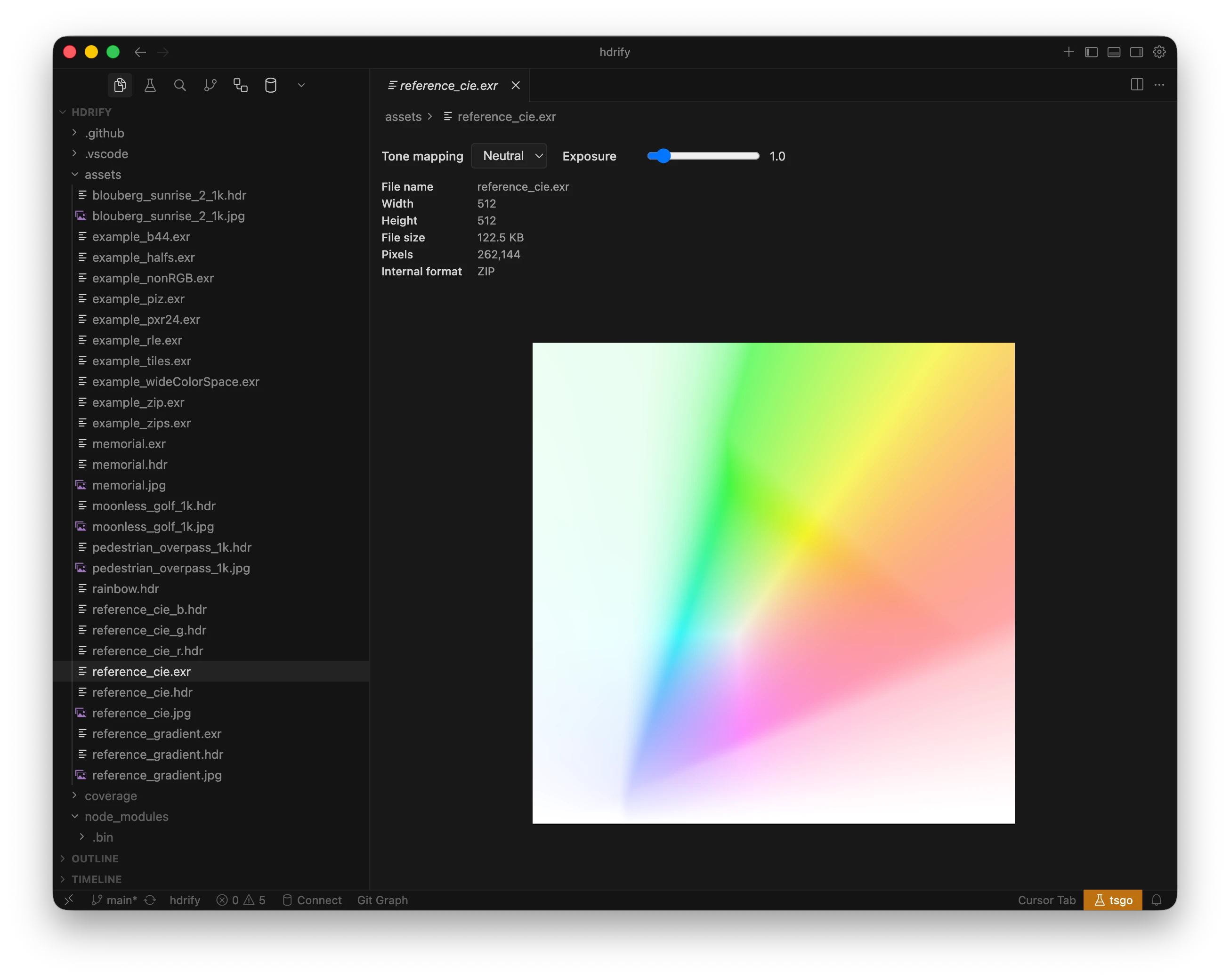
- EXR, HDR and JPEG XL: Click any
.exr,.hdror.jxlfile in the Explorer to open it with the HDR Image Preview (default action). The preview shows metadata (width, height, file size, pixels, internal format), an EV exposure slider and the same tone-mapping selector as<image-viewer>. None appears and is the default only when extended FP16 WebGPU HDR output succeeds. Otherwise None is hidden and Neutral is the default. There is no Automatic option. AgX, ACES and Reinhard remain available in both modes. - JPEG: For UltraHDR Jpeg files, right-click and choose Open with HDR Image Preview. Standard JPEGs open with the built-in viewer by default; use "Reopen Editor With → HDR Image Preview" to try opening as HDR (will show an error if not a gain-map JPEG).
JPEG XL uses the shared React ImageViewer loader, also used by <image-viewer>. Both bare codestreams and containers are supported, with lossless or lossy pixels. Animated files show their first displayed frame; the status includes bit depth, encoding, color space and frame count.
Convert HDR Image
Right-click an EXR, HDR, JPEG XL, or UltraHDR Jpeg in the Explorer. A Convert HDR Image submenu appears with:
- Convert to EXR — Output uses PIZ compression by default (configurable).
- Convert to HDR — Radiance RGBE format.
- Convert to JPEG XL — Lossless Modular encoding with 16-bit floating-point samples by default. Set
hdrify.jxlBitDepthtofloat32to retain decoded source precision. - Convert to UltraHDR Jpeg — JPEG with gain map (Ultra HDR / JPEG-R).
Multi-select: Select multiple files and right-click to convert all of them in one action. A progress indicator appears when processing two or more images.
Supported Formats
| Format | Extension | Preview | Convert |
|---|---|---|---|
| OpenEXR | .exr | Default | ✓ |
| JPEG XL | .jxl | Default | ✓ |
| Radiance HDR | .hdr | Default | ✓ |
| UltraHDR Jpeg | .jpg, .jpeg | Optional | ✓ |
Configuration
| Setting | Type | Default | Description |
|---|---|---|---|
hdrify.conversionQuality | number | 90 | Quality for UltraHDR JPEG output (0–100) |
hdrify.leaveOriginalWhenChangingFormat | boolean | false | When converting, leave the original file and write to a new file (same name, target extension) |
hdrify.exrCompression | string | "piz" | Compression for EXR output: none, rle, zips, zip, piz, pxr24, b44, b44a, dwaa, dwab |
JPEG XL is available in the same Convert HDR Image submenu as the other outputs. All four formats work as inputs, including batch selections. Float16 output rounds to half precision before lossless encoding; float32 retains decoded source precision. Animated JXL conversion uses the first displayed frame.
Additional setting: hdrify.jxlBitDepth (float16 by default, or float32) controls JPEG XL sample precision.
Replace vs Save-As Behavior
By default, the extension replaces the existing file when converting (overwrites with the new format and deletes the original). Enable Leave original when changing format to write to new files instead.
Local development
Follow the contribution workflow to set up the workspace.
To install from a VSIX, run pnpm run package in packages/hdrify-vscode-extension, then use Extensions: Install from VSIX... and select the generated .vsix file.
For repeated local development installs, give each VSIX a unique version without changing the release manifest:
pnpm build
pnpm exec vsce package 1.1.4-dev.20261108204156 --no-update-package-json --no-dependencies
code --install-extension hdrify-vscode-extension-1.1.4-dev.20261108204156.vsix --force
Replace the timestamp suffix for each build. If VS Code requests an extension restart, reload the window to activate the new host code and recreate retained preview webviews.